
Prices or savings look wrong
Why prices and savings in the offer may not match what you expect, from compare-at prices to currencies and rounding, and what to change.
Written by Miguel Zamora
On this page
The numbers in the offer come from your products’ prices, your tier settings and the shopper’s market. If a price or a saving doesn’t look the way you expect, find your case below and the setting to change.
The saving is bigger than your discount
Use product compare-at price is on by default. When a variant’s compare-at price is higher than its price, the crossed-out price and every saving value, such as {{saved_percentage}} and {{saved_total}}, are measured from the compare-at price, multiplied by the tier quantity. That’s why a 15% tier can read “SAVE 40%”.
To measure savings from the selling price instead, open Offer settings and, under Pricing, turn off Use product compare-at price.
Gifts with Include in compare-at price ticked also add their value to the crossed-out price and to the saving.
Check the tier’s Pricing too: Amount off is taken off each item, while Fixed price is the total price of the whole tier, which is why its field is called Tier total price.
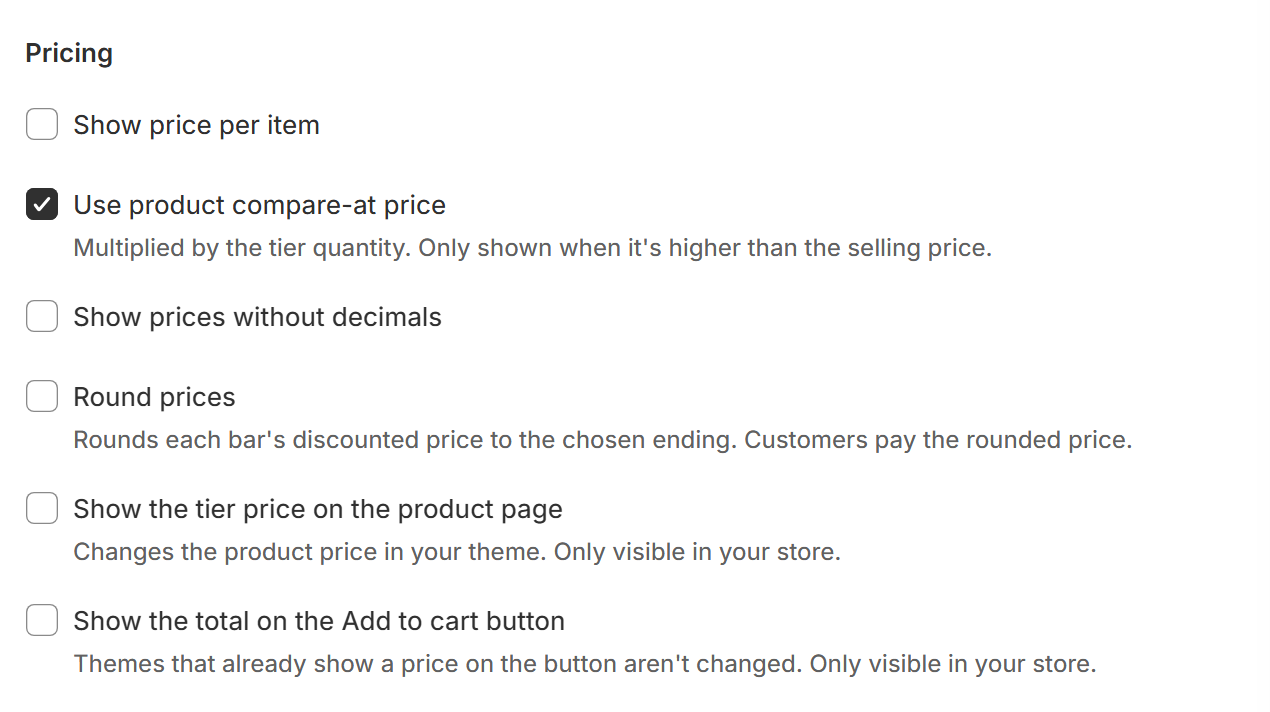
Turn this off to measure savings from the selling price.
Prices are rounded or have no decimals
Three options in Offer settings under Pricing change how prices look:
Round prices rounds each tier’s discounted price to the ending you pick, and shoppers pay that rounded price. Read “Markets, currencies and price rounding” for how it works.
Show prices without decimals only hides the decimals in the offer. It doesn’t change the price charged.
Show price per item shows the price of one item instead of the tier total.
Prices in another currency
The offer shows the same prices Shopify gives your theme for the shopper’s market and currency.
Percentage off looks the same in every currency. Amount off and Fixed price are entered in your store currency and converted with Shopify’s exchange rate, so in other currencies they usually don’t look round.
To check another market before you publish, choose it in the Country menu of the preview. Read “Markets, currencies and price rounding” for more.
The text says Calculated at checkout
When the offer can’t know a price yet, for example before the product data has loaded or when the prices for the shopper’s market couldn’t be read, a tier text that includes a money value shows “Calculated at checkout” instead.
The discount still applies at checkout.
Reload the page. If the text stays, contact our support team with the product link and the shopper’s country.
The price at checkout is different
A discount code or another automatic discount may be applied instead. On the same product, only the best product discount applies.
Under Visibility in Offer settings, Markets, Exclude markets and Exclude B2B customers can leave some shoppers out of the discount.
If the cart changed after the offer was added, the items may no longer match the tier.
Shipping and taxes are added at checkout, so the total there is higher than the tier price.
For the full checklist, read “The discount isn’t applied at checkout”.