
Add to cart doesn’t add the offer as expected
A checklist for when Add to cart adds nothing, adds the wrong items or quantities, or your cart drawer doesn’t open or update after a click.
Written by Miguel Zamora
On this page
Use this checklist when a shopper clicks Add to cart on a product page with an offer and the cart doesn’t end up as you expected. To see how it normally works, read “Themes, cart drawers and page builders”.
Nothing is added, or a message asks to choose
If Require variant choice is on in the tier, shoppers must pick a variant for every item. Until they do, the offer shows “Please select a variant.” under the tiers and nothing is added.
If Complete with other products has Require every item to be chosen on, shoppers must choose every item first. If they try to add before that, they see your Alert text, by default “There is a required item to be selected in order to complete your order.”
A tier with Show as sold out on is faded and can’t be chosen. Turn it off in the tier when the product is back in stock.
Sold-out variants can’t be added, and Shopify can’t add more units than you have in stock. In that case the shopper sees “There’s not enough items in stock.” Check each variant’s inventory in Shopify.
Try it yourself in a private browser window, as a shopper would, to see the same message they see.
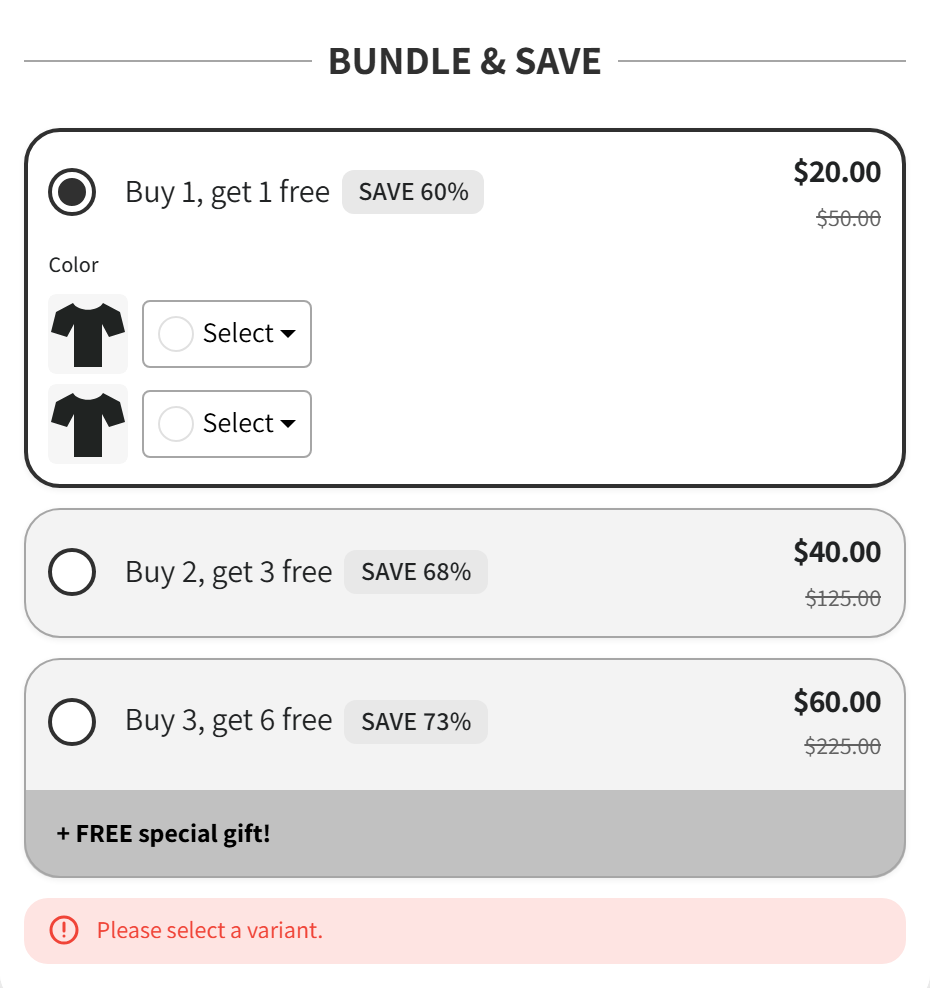
Shoppers must choose a variant for each item before adding the offer.
The cart has the wrong items or quantities
BOGOX adds the items of the tier that’s selected when the shopper clicks the button. Check which tier was selected: the one with Selected by default is preselected when the page opens.
Your theme’s quick-add buttons on collection pages add one item without the offer. To learn which discounts those items can still get, read “The discount isn’t applied at checkout”.
If the shopper changes quantities in the cart, the items may no longer match the tier. Ask them to select the tier again in the offer and add it to the cart.
Checkbox add-ons are added only when the shopper ticks them.
Free gifts are added as their own line in the cart, and the discount brings their price to 0.
With Complete with other products, Auto-fill not chosen items fills empty items with the main product. Turn it off if you want shoppers to choose each one.
If the offer is on a custom page or a page builder, the Add to cart button on that page must belong to the same product as the offer.
The cart drawer doesn’t open or update
Normally BOGOX refreshes and opens supported cart drawers, or sends shoppers to the cart page, as explained in “Themes, cart drawers and page builders”. If that’s not what you see:
If shoppers land on the cart page instead of your cart drawer, BOGOX didn’t recognize your drawer. The cart itself is correct. Contact our support team with your theme name and the name of any cart app you use, and we’ll check it.
If your drawer opens with old content, reload the page to check that the items are really in the cart. Then contact our support team with the same details.
If shoppers skip the cart and go straight to checkout, check Go straight to checkout under Cart in Offer settings. Turn it off if you want them to see the cart first.
If the shopper sees “The cart could not be confirmed. Review your cart before trying again.”, ask them to open the cart and check it before trying again.
Still having trouble?
Contact our support team and include:
The link to the product page.
The tier the shopper chose.
Your theme name and any cart app you use.
A screen recording or screenshots of what happens after clicking Add to cart.