
You can’t save or publish an offer
What to do when the offer editor won’t let you save or publish: read the Fix to save card, fix each message and get your offer live.
Written by Miguel Zamora
On this page
The offer editor checks your offer while you edit it. When something is missing or can’t be saved yet, the save and Publish buttons stay disabled until you fix it, and the editor tells you exactly where to look.
Read the Fix to save card
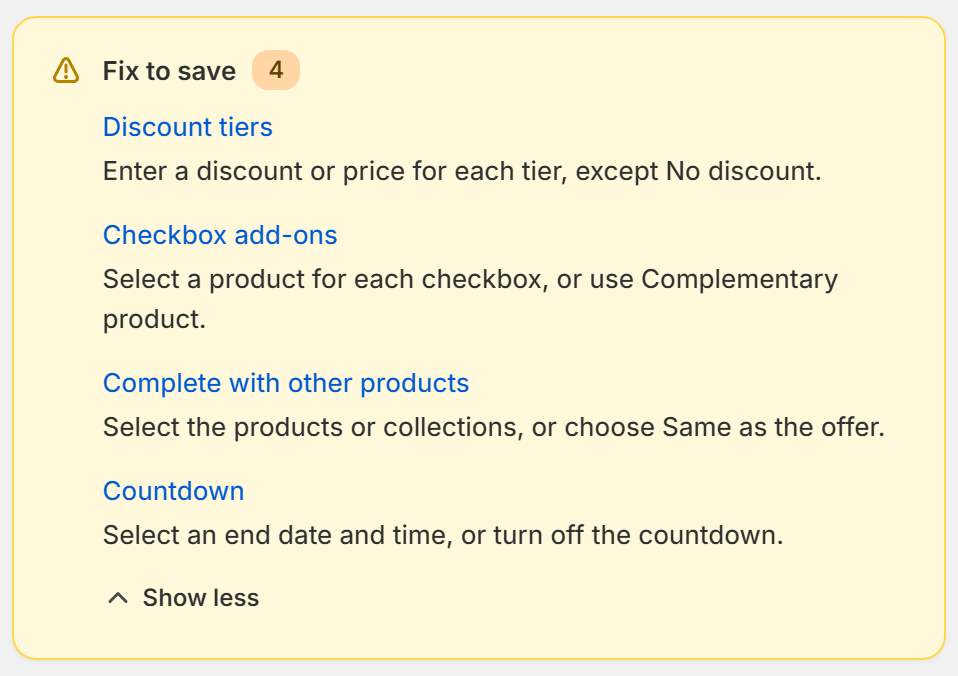
When something needs your attention, a card titled Fix to save appears above the preview, with the number of problems next to its title.
Each line is one problem. It starts with the name of the step or extra where the problem is, for example Discount tiers or Countdown, followed by what to do.
Select that name to open the step or extra and go straight to it.
A few messages are about the whole offer, so they have no name to select.
The card shows up to three problems. If there are more, select Show all, followed by the number of problems, to see the full list, and Show less to fold it again.
The step headers point the same way: a step with problems shows how many there are, for example 2 to review. Some extras show a short note instead, such as Product missing in Checkbox add-ons, Products customers can choose are missing in Complete with other products and End date and time missing in Countdown.
When nothing is left to fix on a new offer or a draft, the card changes to Ready to publish. Check the preview, then select Publish.
If a save is stopped, a short error message tells you why. For some problems, such as a wrong date, a red box titled Complete the required fields also appears at the top of the editor.
Common messages and how to fix them
These are the messages you’re most likely to see, with the fix for each one.
Enter a discount or price for each tier, except No discount. Open Discount tiers and fill in the discount or price of every tier, or set its Pricing to No discount.
Select products for each gift, or remove that gift. In the tier’s Images, gifts and more, choose the product of each gift, or remove the gifts you don’t need.
Select a product for each gift, or remove that gift. This one comes from Unlockable gifts. Choose a product for each gift, or select Remove gift.
Select a product for each checkbox, or use Complementary product. In Checkbox add-ons, select a product for each checkbox, or switch it to Complementary product.
Select the products or collections, or choose Same as the offer. In Complete with other products, select the products or collections shoppers can choose from, or choose Same as the offer under Products customers can choose.
Select an end date and time, or turn off the countdown. Open Countdown and set when it ends, or turn it off.
Paid personalization isn’t available yet. Set the price per item to 0. In the tier’s Product personalization, set Price per item to 0. Personalization is free for now.
Use whole numbers from 1: up to 9,999 for quantity discounts and up to 99 for Buy, Get and bundle products. Check the Quantity of each tier and the Buy, Get and product quantities. Use no decimals and no 0.
Wait for the variants to finish loading before saving. The editor is still reading your products from Shopify. Wait a few seconds and try again.
Enter a valid date. Open Offer settings and check the dates under Active dates.
A message that starts with Custom CSS: Its link opens the Appearance step. Shorten your custom CSS there, or remove the tags the message names.
Publish is greyed out
Publish stays disabled while the Fix to save card lists any problem. Fix them all and it turns on.
It also stays disabled for a few seconds while the offer and its variants load.
If you see You can save it as a draft, but it can’t be published yet., save your work as a draft now and try to publish again later.
On an offer that’s already live you see Save draft instead of Publish. If the editor says This offer is published and changes can’t be saved right now. Use Save draft to keep them; the offer will stop showing in your store., you can choose: keep the live version as it is and leave without saving, or select Save draft to keep your changes, knowing the offer stops showing in your store until you publish it again.
If a box at the top says the offer’s Shopify discount no longer exists, the offer is Disconnected. Go back to your offers list and select Reconnect in the offer’s menu, as explained in “Publish, turn off, duplicate or remove offers”.
If a red box says We couldn’t finish loading the offer while you create an offer, select Retry. Your changes are kept.

When the card says Ready to publish, Publish is available.
Still stuck?
Reload the editor. The last version you saved stays as it was.
Check your internet connection and try again.
If it still won’t save, contact our support team with the offer name, a screenshot of the Fix to save card and the step you were editing.