
Create a Mix and match tier
Offer a ready-made set with one discount where shoppers can swap items for products you allow, like “pick any 3 scents”, with a Mix and match tier.
Written by Miguel Zamora
On this page
What it is and when to use it
Mix and match is a tier type you add to any offer, not a template. It’s a ready-made set, the product on the page plus other items, with one discount on the whole set. Shoppers can swap each extra item for another product you allow, for example “pick any 3 scents”.
How it compares with similar options:
Quantity breaks for different products is a quantity discount where shoppers fill free slots with the products they want. See “Set up quantity breaks for different products”.
A Product bundle tier has fixed items that shoppers can’t swap. See “Create a Complete the bundle offer”.
Use Mix and match when you want to suggest a specific set but still let shoppers choose within a family of similar products, such as flavors, scents or colors.
How it looks for shoppers
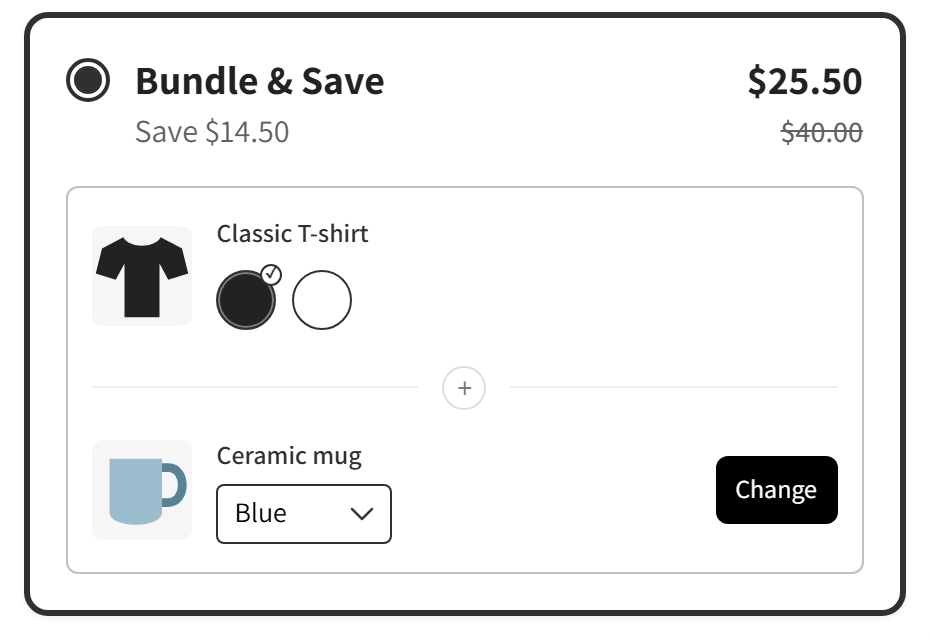
On the product page, the tier shows its title and subtitle, which start as “Bundle & Save” and “Save {{saved_amount}}” (the amount saved, such as “Save $9.00”). Under them, the tier lists the items of the set with their names.
When the tier is selected, each item you made swappable shows a button, “Change” by default. It opens a window, titled “Select product” by default, where shoppers pick another product and its variant. The total shows the set price with the original price crossed out.
When shoppers add the set to the cart from the offer, the discount is applied automatically in the cart and at checkout.
Add the tier
Open an offer, or create one from a template.
In Discount tiers, click Add tier and choose Mix and match.
The new tier opens. It starts at 15% off, with Default product (the product on the page) as its first item.
Add the other items and set the price, as explained below, then check the Preview.
Click Publish to make the offer live, or save it as a draft.
Choose the products
In the tier’s Products section:
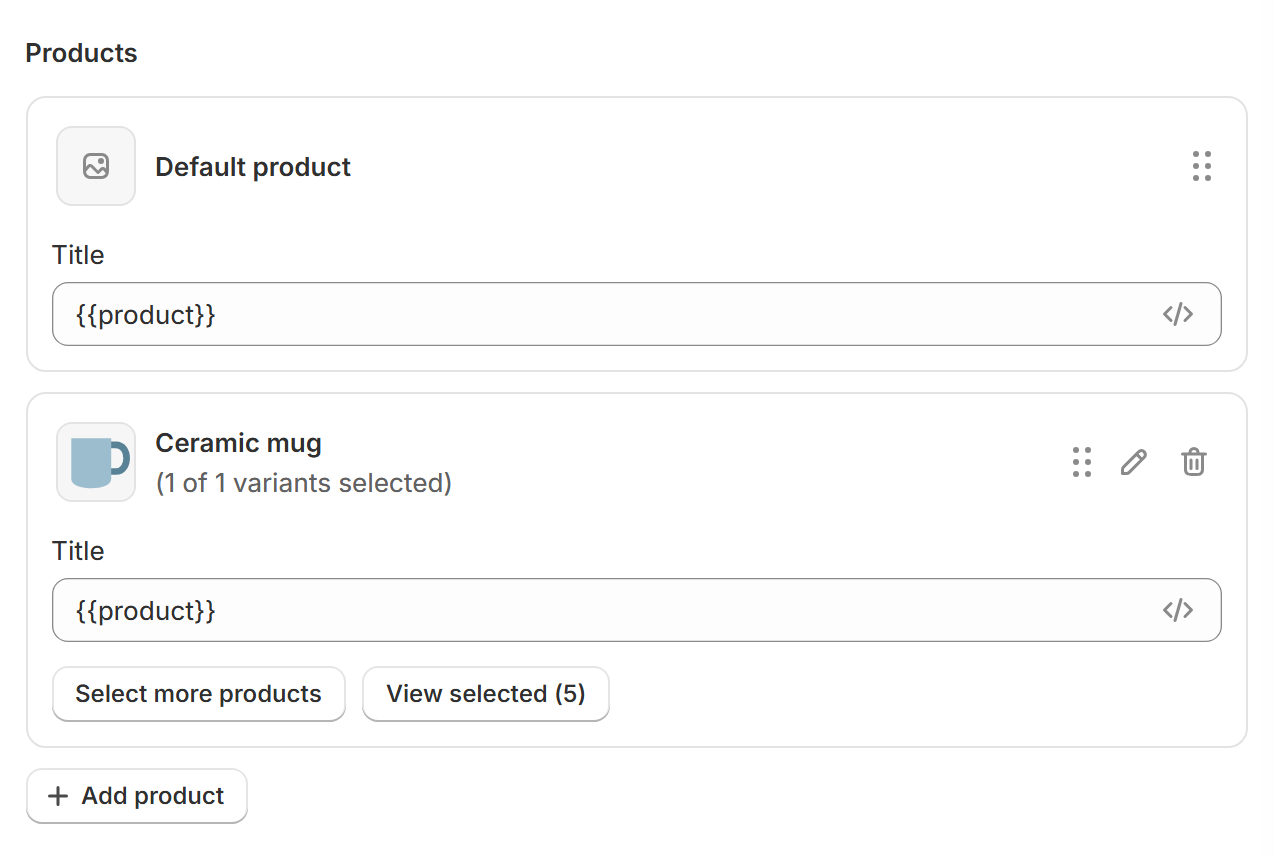
Click Add product and pick one or more products in Shopify’s selector. Each one becomes an item of the set.
For each item, click Select changeable products and pick the products shoppers can swap it for, up to 100. Only items with changeable products get the swap button.
To add more later, click Select more products. To check the list, click View selected, which shows how many you picked.
On each item you can also:
Click its name to replace it with another product.
Click the pencil (Edit variants) to offer only some of its variants.
Click the trash icon (Remove product) to take it out of the set.
Drag it by its handle to change the order.
Edit its Title, which starts as {{product}}, the product’s name.
An item whose variants are all sold out shows Out of stock. The Default product always stays in the set: it can’t be removed or swapped.
Price, texts and the product window
In Text and pricing:
Title and Subtitle: the tier’s main line and its supporting line.
Pricing: No discount, Percentage off, Amount off or Fixed price. Then enter the Discount, or the Bundle price if you chose Fixed price. It applies to the whole set, not to each item.
Discount label: a short tag such as “SAVE 15%”.
Button text: the text of the swap button, “Change” by default.
In Selection options:
Apply selling plan: for offers with subscriptions. See “Tier types: which one to use”.
Show products only when selected: shows the items only after shoppers select this tier.
Selected by default: this tier starts selected.
Show product prices: shows each item’s price.
Require variant choice: shoppers must choose a variant before adding the set.
To customize the window shoppers use to swap items, click Edit product modal. In Customize window you can change sizes and colors, the Heading, Subtitle and Button text (“Choose” by default), the Default sort, and turn on Show search field. Check the result in the window’s own preview and click Apply. These window settings are shared by every Mix and match tier of the offer.
Tip: keep the set to 2–4 items, and keep each list of changeable products at a similar price, so the deal stays clear and the savings stay predictable.