
Tier types: which one to use
Compare the five BOGOX tier types, add and reorder tiers, offer an alternative product, show a tier as sold out and apply a selling plan.
Written by Miguel Zamora
On this page
In the Discount tiers step of the editor, each tier is one option shoppers can pick on the product page. BOGOX has five tier types, and one offer can mix them, for example two quantity tiers and a bundle tier.
The five tier types
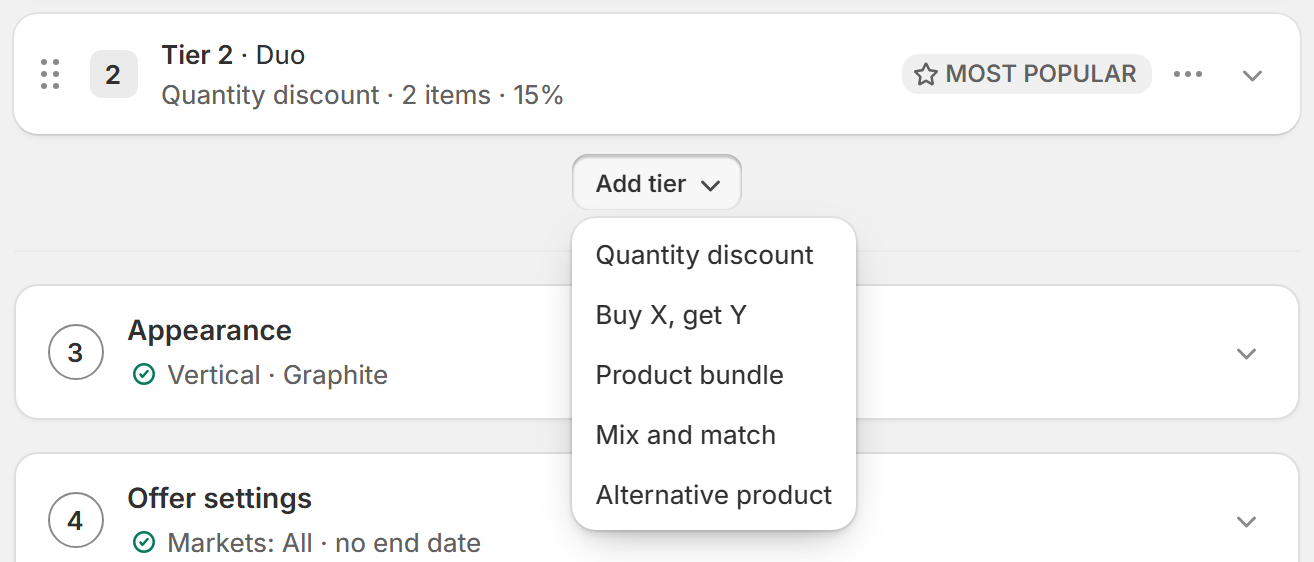
Quantity discount: more units of the same product at a better price, such as 10% off 2 units and 20% off 3. Use it to sell more of one product; see “Set up quantity breaks for the same product”. With the Complete with other products extra on, shoppers can fill the tier with different products, which turns it into a mix-and-save deal; see “Set up quantity breaks for different products”.
Buy X, get Y: shoppers buy a number of units and get more for free or at a discount, such as buy 2, get 1 free. See “Set up a Buy X, get Y (BXGY) deal”.
Product bundle: the product on the page plus items that complete it, at a bundle price. See “Create a Complete the bundle offer”.
Mix and match: a ready-made set of items with one discount, where shoppers can swap items for other products you allow. See “Create a Mix and match tier”.
Alternative product: another product instead of the one on the page, such as a bigger size or a premium version. It’s explained below.
Add, reorder and remove tiers
In Discount tiers, click Add tier and choose one of the five types.
The new tier is added at the end and opens so you can edit it. It’s also selected in the preview.
Rewrite its texts, set its price and save the offer.
New tiers come with starter texts in English that you can rewrite: a Buy X, get Y tier starts as “Buy 2, get 1 free!” (the numbers follow your previous tier), a Product bundle as “Complete the bundle”, a Mix and match as “Bundle & Save” and an Alternative product as {{product}}, which shows the product’s name. A new Quantity discount tier takes the next quantity and starts with an empty title.
An offer can have up to 20 tiers. When you reach the limit, you’ll see You can add up to 20 tiers. Quantities are whole numbers: up to 9,999 for a Quantity discount and up to 99 for Buy, Get and bundle items.
To change the order, drag a tier by its handle (Drag to reorder). To copy or remove a tier, open its ⋮ menu and choose Duplicate or Delete. Badges move with their tier.
Alternative product tiers
An Alternative product tier offers a different product instead of the one on the page, for example a bigger size, a premium version or a starter kit. When shoppers pick it, one unit of that product goes to the cart.
Click Add tier and choose Alternative product.
Click Select a product and choose the product in Shopify’s selector. You can keep all its variants or only some.
Check the card: it shows the product’s photo and price, and Out of stock when every variant is sold out.
Adjust the tier’s Title, Subtitle and Discount label. The title starts as {{product}}, the product’s name.
On the card, the pencil (Edit product) changes the product or its variants, Edit in Shopify opens Shopify’s product editor and Remove product clears it.
This tier has no discount of its own: the product is added at its normal price. You can still add gifts, upsells, images or highlights in Images, gifts and more. Choose a product before you save, because the offer can’t be saved while an Alternative product tier has none.
Show a tier as sold out
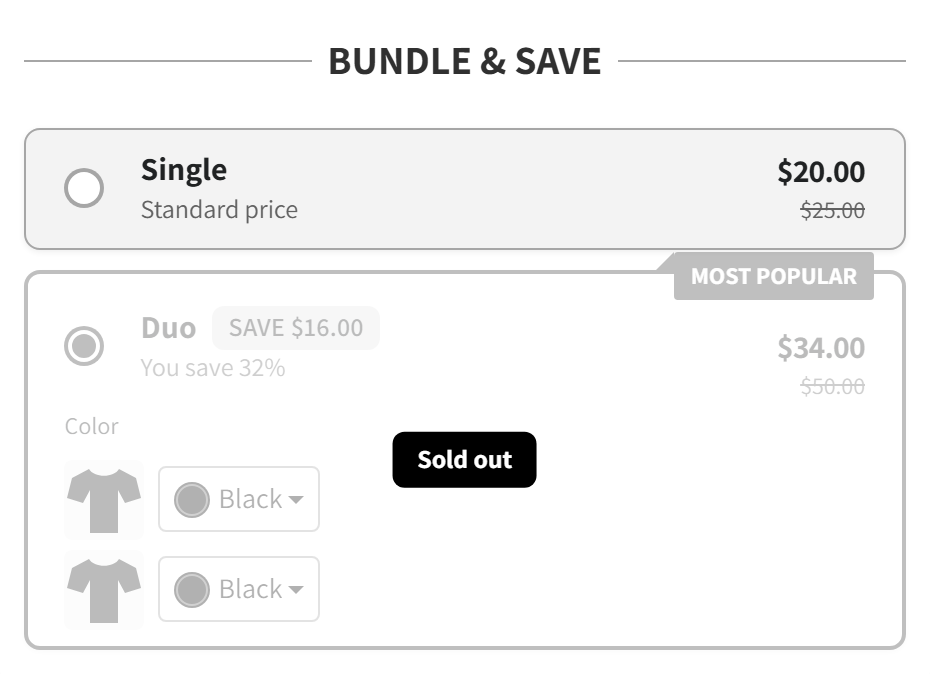
At the end of every tier there’s a Show as sold out switch. When it’s on, shoppers see the tier faded, with a label, and can’t choose it. Use it to create scarcity, or for a tier you’ve run out of.
Label text: the label on the tier, “Sold out” by default.
Opacity: how visible the faded tier is, 30% by default.
Background and Text: the colors of the label.
Size: the label’s text size, from 8 to 32 px.
Remember to turn the switch off when you have stock again. BOGOX doesn’t do it for you.
Apply a selling plan to a tier
This option only matters when the offer sells subscriptions (see “Create a Subscription offer”). It’s available on Quantity discount, Mix and match and Alternative product tiers, among the tier’s options.
Open the tier and tick Apply selling plan.
In the list that appears, pick a plan, which BOGOX reads from your products, or keep Default.
When a shopper subscribes, this tier is sold with the plan you picked instead of the default one, for example a monthly plan on the 3-unit tier. If a product doesn’t have that plan, the store looks for a plan with the same name or uses the product’s first plan.