
Get to know the offer editor
A map of the BOGOX offer editor: the five setup steps, the live preview, and when to save, save as draft, publish or discard your changes.
Written by Miguel Zamora
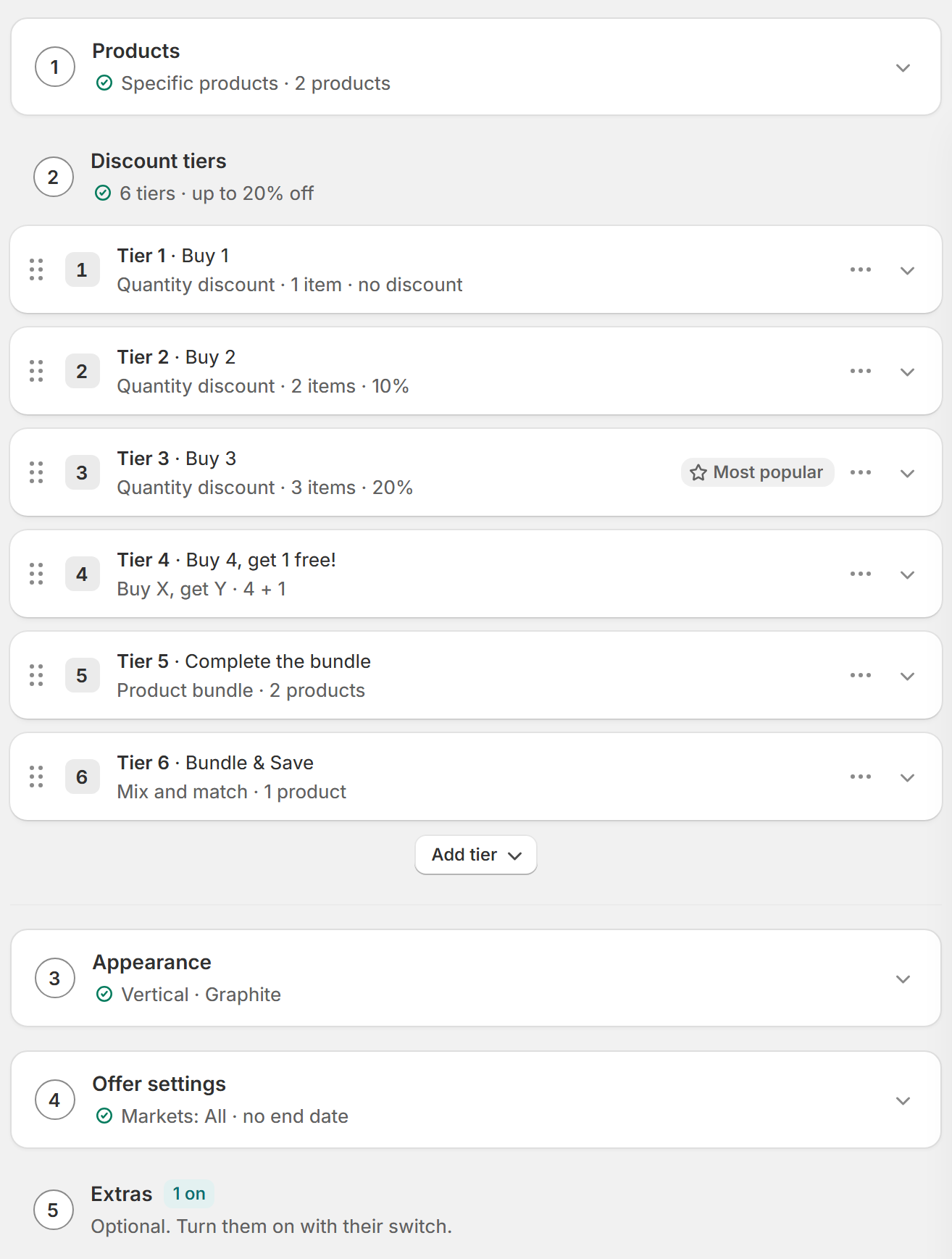
When you create an offer from a template or open one from your offers list, BOGOX opens the offer editor. You set up the offer in five steps, and the preview next to them shows how it will look. This guide is a map of the editor; each step has its own detailed guide.
The five steps
The steps are numbered. Products, Appearance and Offer settings open one at a time: opening one closes the one you were in. Discount tiers and Extras always stay visible, and you open each tier or extra inside them. Each header shows a short summary of its settings, and a count such as 2 to review when something needs your attention.
Products: which product pages show the offer, and how shoppers choose variants and swatches. See “Choose where an offer appears” and “Variants and swatches”.
Discount tiers: the options shoppers pick from. Each tier is a card you click to open. Drag a card to change the order, use its ⋮ menu to Duplicate or Delete it, and click Add tier to add another. See “Tier types: which one to use”.
Appearance: the layout, colors and CSS of the offer.
Offer settings: name, visibility, pricing, cart, dates and low stock alert. See “Offer settings: name, discount name, dates and combinations”.
Extras: optional features, each with its own switch, in three groups. Increase order value has Checkbox add-ons, Complete with other products and Unlockable gifts. Urgency and trust has Countdown, Scratch-off, Badges and Savings summary. Shopping experience has Sticky cart bar and Subscriptions. The header shows how many are on.
Each extra has a guide: see “Add a checkbox upsell”, “Create a Progressive gifts offer”, “Add and edit badges”, “More extras to boost your offer” and “Create a Subscription offer”.
Use the preview
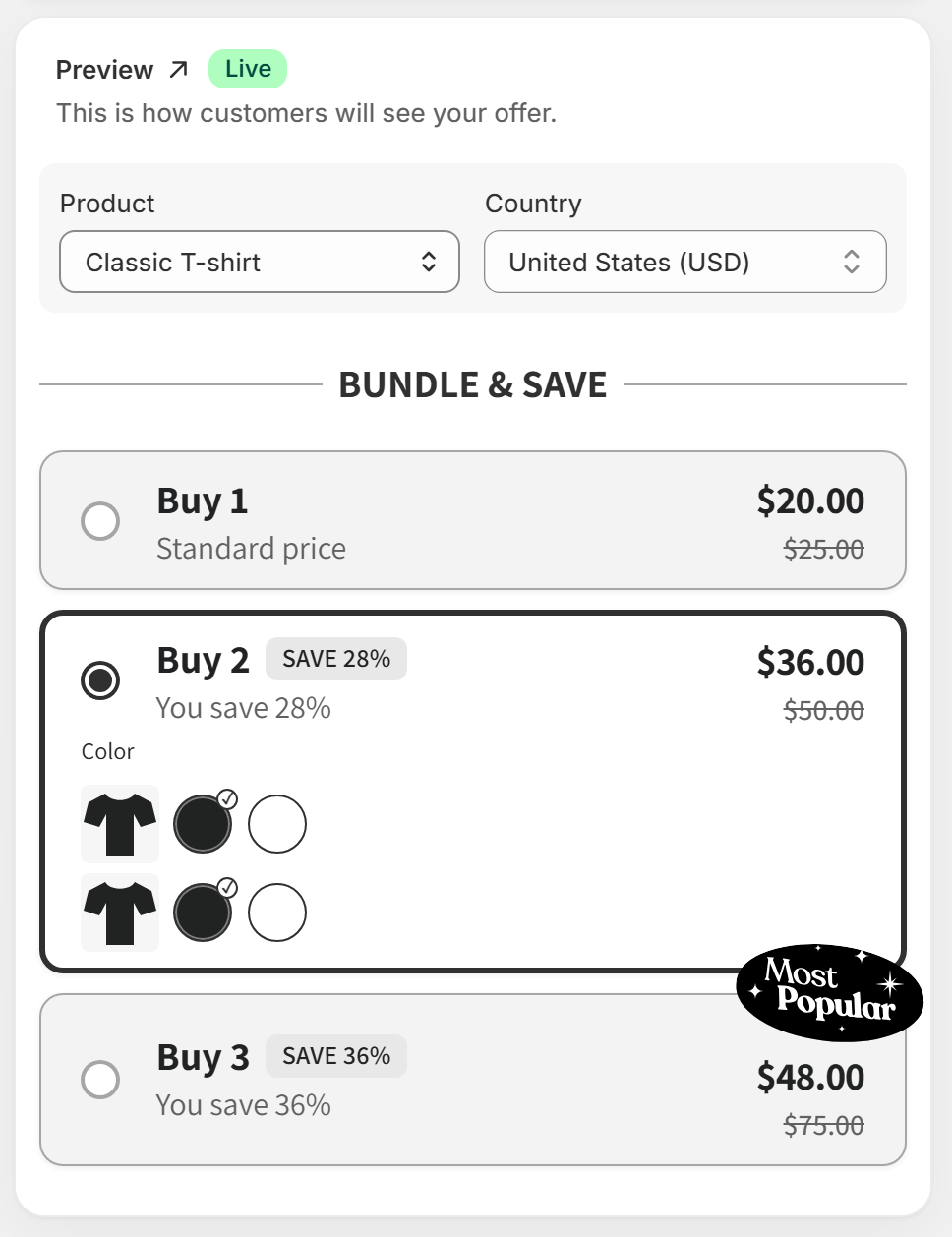
The Preview column stays in view while you scroll and updates as you type: This is how customers will see your offer. Above it you’ll find these controls:
Product: choose which of the offer’s products to preview.
Country: show prices in that market’s currency. Each country shows its currency code next to its name. If no country list is available, the only option is Store currency, followed by your currency code.
Preview scratch-off: appears when the Scratch-off extra is on, so you can see the scratch card.
Open product in storefront: opens the same product in your store.
The preview and the tiers stay in sync. Opening a tier in Discount tiers selects it in the preview, and clicking a tier in the preview selects it and opens it in the editor.
A few options only show in your real store, such as Show the tier price on the product page. Once the offer is live, use Open product in storefront to check them.
Save, save as draft or publish
What the buttons do depends on the offer. Save and Discard are in Shopify’s bar at the top. On a new offer the bar is there from the start; on a saved offer it appears as soon as you change something.
A new offer: Publish makes it live. Save keeps it as a draft.
A draft: Save keeps your changes and the offer stays a draft. Publish makes it live.
A live offer: Save applies your changes and the offer stays live. Save draft saves it and takes it off your store.
Above the preview, a card tells you whether the offer is ready. On a new offer or a draft, Ready to publish means everything is in order: Check the preview, then select Publish. Fix to save lists what’s missing, with a link to each problem that takes you to the right step. If you’re stuck, see “You can’t save or publish an offer”.
When you use Save draft on a live offer, BOGOX confirms it with Draft saved.
Leave or discard changes
To undo your changes, click Discard in Shopify’s bar. The offer goes back to its last saved version or, if it’s new, to how it was when you opened it.
If you try to leave with unsaved changes, for example with the link at the top (Offers, or Templates on a new offer) or from the app menu, BOGOX asks Leave without saving?
Leave without saving: you leave and lose the changes you didn’t save.
Keep editing: you stay in the editor, so you can save first.