
Your offers list and offer statuses
Find any offer on the BOGOX Home page, learn what Active, Draft, Scheduled, Ended and Disconnected mean, and fix a Disconnected offer.
Written by Miguel Zamora
On this page
All your offers are in the Offers table on the BOGOX Home page. This guide explains how to find an offer, what its status means and how to fix a disconnected one. To turn offers on or off, duplicate them or remove them, see “Publish, turn off, duplicate or remove offers”.
Find your offers
The tabs above the table filter the list by status:
All: every offer.
Active: offers that are live right now.
Inactive: offers that don’t show in your store, which are drafts, ended offers and disconnected offers.
Scheduled: published offers waiting for their start date.
To look for a specific offer, click the search button (the magnifying glass) and type in Search offers by name or product. The list updates as you type, inside the tab you’re on. Press Esc to clear the search.
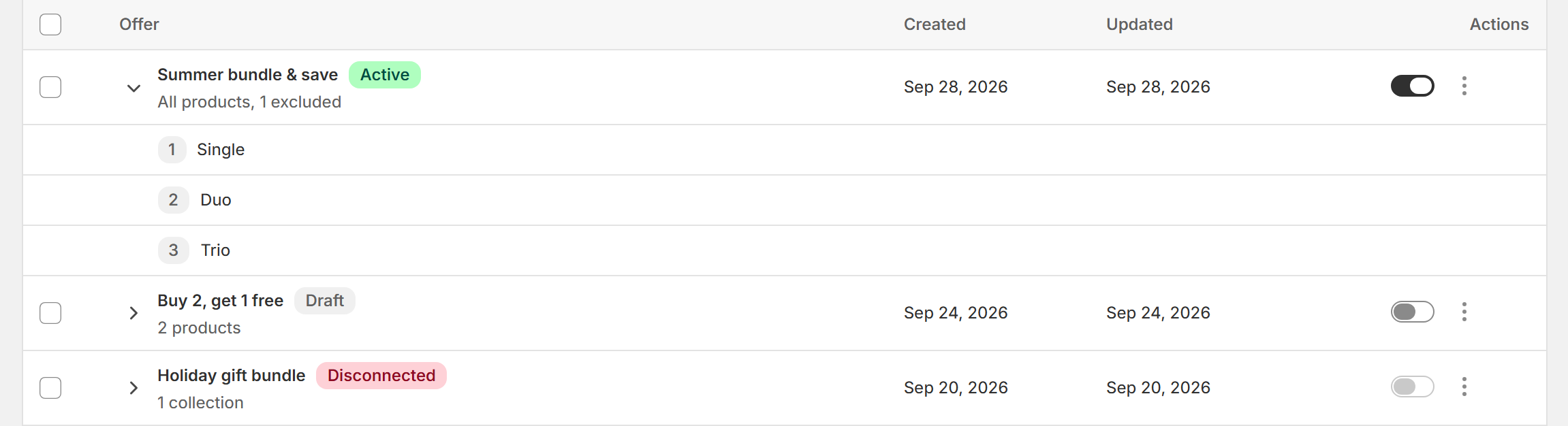
Each row shows:
The offer name, with its status next to it.
Under the name, the products the offer targets, for example All products, 2 excluded.
A chevron before the name, Show tiers, that lists the offer’s tiers under the row. Click it again to hide them.
The date the offer was created and, on the right, its switch and the More actions menu (⋮).
To add more columns, click Columns above the table and tick Status or Updated. BOGOX remembers your choice on this browser.
Click an offer’s name, or anywhere on its row, to open it in the editor. While some rows are ticked, clicking a row ticks or unticks it instead. The table shows 25 offers per page; use the arrows under it to see the rest.
To delete several offers at once, tick their checkboxes and click Delete in the bar that appears, as explained in “Publish, turn off, duplicate or remove offers”.
If you don’t have any offers yet, you’ll see No offers yet with a Create offer button. The same message appears when a tab or a search has no results.

What each status means
Active: the offer is published and inside its active dates. It shows on its product pages and its discount applies.
Draft: the offer is saved but not published, so it never shows in your store. To make it live, open it and click Publish, or turn on its switch in the table.
Scheduled: the offer is published, but its Start date hasn’t arrived yet. It starts showing on that date.
Ended: the End date has passed, so the offer no longer shows or discounts. To run it again, open it and change Active dates in Offer settings.
Disconnected: the offer’s Shopify discount was deleted outside BOGOX. The offer doesn’t show and doesn’t discount until you reconnect it.
Colors help you scan the list: green for Active, blue for Scheduled and red for Disconnected. The Status column shows the same status as the badge next to the name.
Fix a Disconnected offer
Each BOGOX offer works through an automatic discount in Shopify, named with the offer’s code, such as BOGOX-48088D. An offer becomes Disconnected when that discount no longer exists, usually because someone deleted it on Shopify’s Discounts page, or because the app was uninstalled and installed again.
On a disconnected offer, the switch in the table is greyed out and can’t be turned on. To fix the offer:
On the offer’s row, open the More actions menu (⋮).
Select Reconnect. BOGOX creates the discount again and confirms it with Deal reconnected.
If you no longer need the offer, select Remove instead.
If you open a disconnected offer, a warning at the top of the editor says This deal’s Shopify discount no longer exists. It was marked as disconnected: reconnect it or delete it. Use its button to go back to your offers list and reconnect the offer from there.
Tip: manage your offers from BOGOX, not from Shopify’s Discounts page. Turning an offer off or removing it in BOGOX keeps everything in sync.
Change the app language
At the bottom of the Home page, the App language menu changes the language of the BOGOX panel, for example to English or Español. As the help text under it says: Only changes the language of this panel, not your store.
Your store and your offers don’t change. BOGOX remembers the language you picked on this browser.