
Themes, cart drawers and page builders
Which themes BOGOX works with, where the widget sits on the product page, how to move it and what happens after a shopper clicks Add to cart.
Written by Miguel Zamora
On this page
BOGOX is built to fit into your existing theme without editing its code. Here’s how it works with themes, carts and custom product pages.
Which themes work
BOGOX loads through its app embed, which works with any Shopify theme. The only requirement is that Bogox Upsell, Cross-sell is turned on under App embeds in the theme you use, as explained in “Install BOGOX and turn it on in your theme”.
To move the widget to a different spot you need an Online Store 2.0 theme, such as Dawn or most current themes from the Shopify Theme Store, because only those themes accept app blocks.
Options such as Show the tier price on the product page and Show the total on the Add to cart button change your theme’s own price and button. They work with most themes, and themes that already show a price on the button aren’t changed.
Where the widget appears and how to move it
By default, BOGOX places the offer inside the product form, just above your theme’s Add to cart button. Shoppers pick a tier in the widget and add it with your theme’s Add to cart or Buy it now button.
To show it somewhere else on the product page:
In Shopify, go to Online Store > Themes and click Customize.
Open a product template.
In the product information section, click Add block and choose Bogox Quantity Breaks from the Apps tab.
Drag the block to where you want the offer and click Save.
When the block is visible, the offer shows inside it instead of in the default spot. The block’s Product setting is filled in with the page’s product automatically. Keep the block on the same page as that product’s Add to cart button, since that button is what adds the offer to the cart.
What happens after Add to cart
BOGOX adds the selected tier to the cart and then:
If your theme has a cart drawer or cart popup like the one in Dawn and the many themes based on it, BOGOX refreshes it and opens it.
Some cart drawer apps, such as UpCart, are refreshed too.
If no supported cart drawer is found, the shopper goes to the cart page, which always shows the updated cart.
If you turned on Go straight to checkout under Cart in Offer settings, or the shopper uses Buy it now, they go straight to checkout.
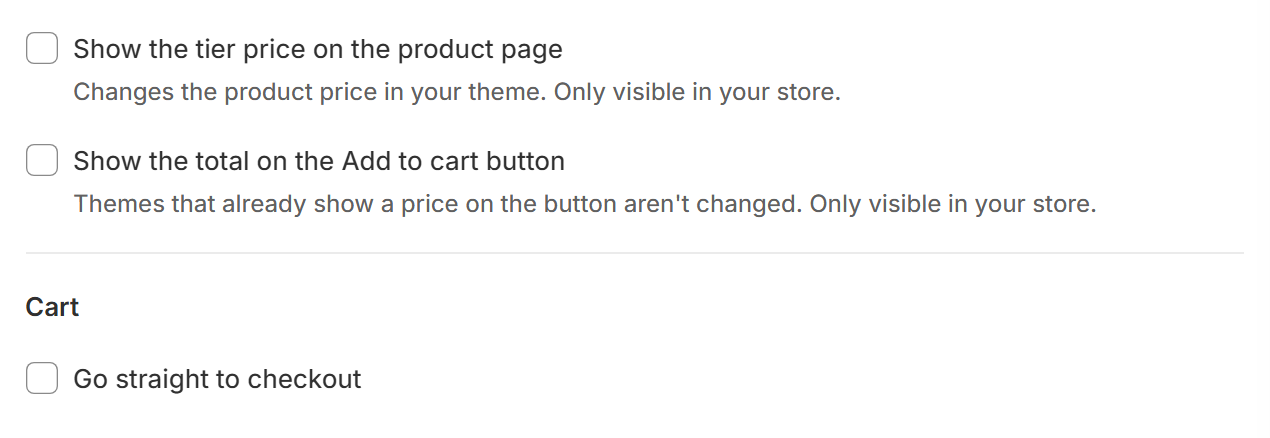
These options change your theme's price, button and cart flow.
Custom product pages and page builders
BOGOX places the offer automatically when the page has a standard Shopify product form with an Add to cart button for that product. Many page builders keep that form, so offers often work on their pages too, but we can’t guarantee every custom layout.
If the offer doesn’t show, appears in the wrong place or the button doesn’t add the selected tier, contact our support team. Send the page link, your theme name and the page builder you use, and we’ll check it for you.