
Markets, currencies and price rounding
How BOGOX shows offer prices in each shopper's currency, converts fixed discounts, rounds tier prices and limits an offer to one market.
Written by Miguel Zamora
BOGOX works with Shopify Markets. This guide explains what shoppers see in other currencies, what Round prices does and how to show an offer only in some markets.
Prices in your shopper’s currency
The widget shows prices in the currency the shopper is browsing in. It uses the same product prices Shopify gives your theme for that market, including prices you set by hand for a market, so the offer matches the rest of the product page.
How a tier’s discount converts depends on its type:
Percentage off works the same in every currency, because it’s a percentage of the local price.
Amount off and Fixed price are entered in your store currency. BOGOX converts them with Shopify’s exchange rate for the shopper’s currency, the same way the discount is worked out at checkout, so the price in the widget is the price in the cart.
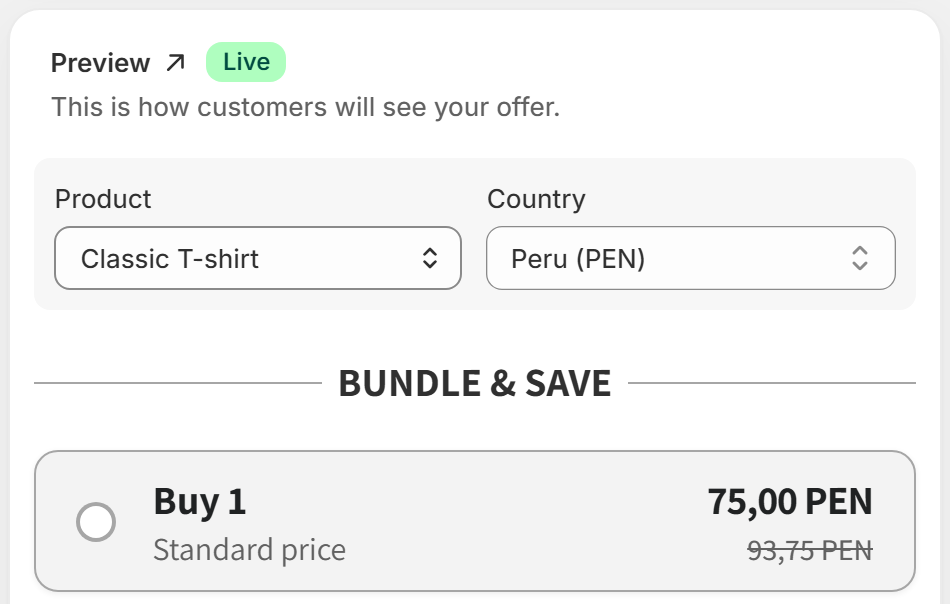
To check another market before you publish, choose it in the Country menu of the Preview in the offer editor. The Store currency option shows prices in your own currency.
Round prices
In the offer editor, open Offer settings.
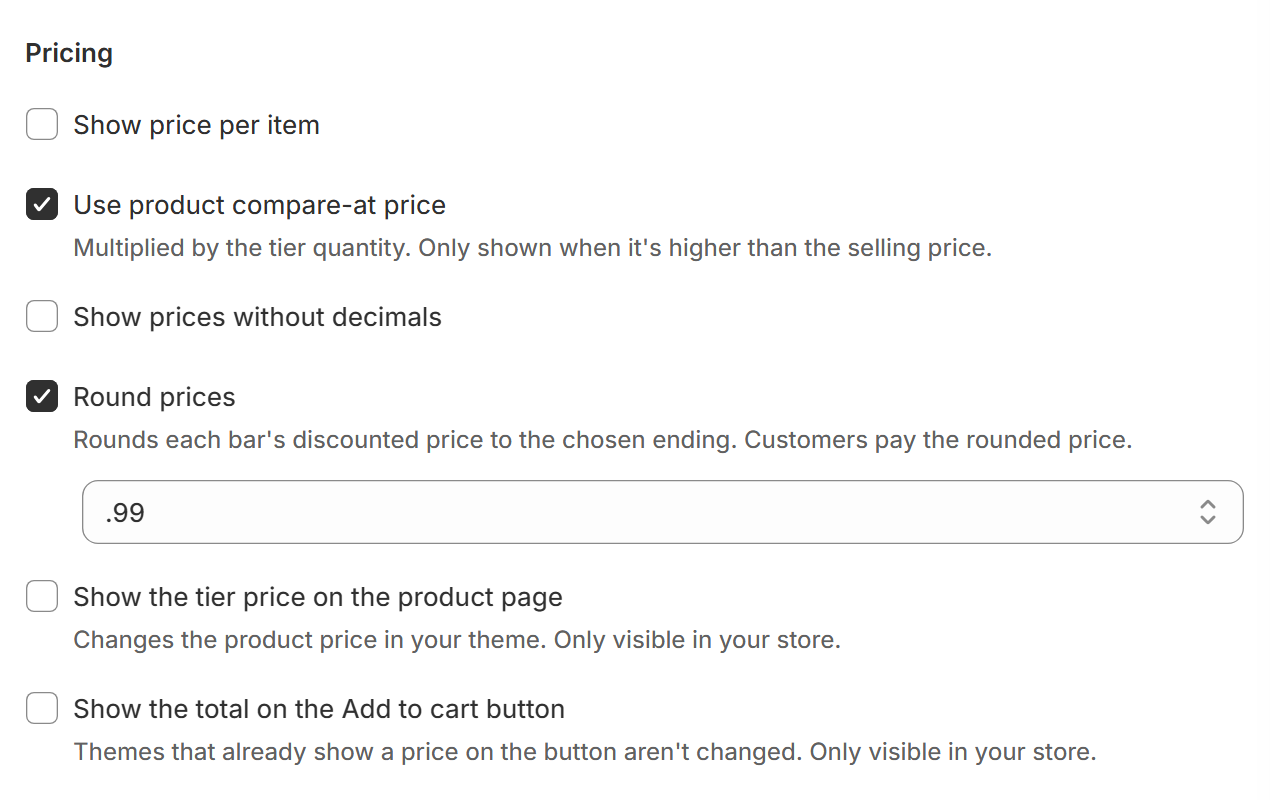
Under Pricing, turn on Round prices.
Choose an ending in the menu that appears: .99, .95, .90, .x9, .x0 or .00.
Save or publish the offer.
With .99, .95, .90 or .00 the price ends in exactly those cents. With .x9 or .x0 only the last digit is fixed, for example 47.29 or 47.30.
BOGOX rounds each tier’s discounted total up to the next price with that ending. If that would be more than the tier’s full price, it rounds down instead. Tiers with no discount or a free total are not rounded, and currencies without decimals, such as the Japanese yen, are never rounded.
Rounding changes what customers pay: the rounded price is the one charged at checkout, in every currency. Show prices without decimals is different. It only hides the decimals in the widget and doesn’t change the price.
Show an offer only in some markets
In Offer settings, go to Visibility.
In Markets, keep All to show the offer everywhere, or choose one market to show it only there.
To do the opposite, choose a market and tick Exclude markets. The offer then shows everywhere except in that market. With All selected, nothing is excluded.
Save or publish the offer.
The market rule applies to the widget and to the discount, so a shopper outside the chosen market doesn’t see the offer or get its discount at checkout. You can also tick Exclude B2B customers. It works with Shopify B2B only, not with B2B apps from other developers.
If the menu shows Unavailable market, the market saved on the offer no longer exists in Shopify. Choose another one and save.