
Show images, gifts and extra lines in a tier
Use Images, gifts and more in each tier to add an image, a featured image, free gifts, upsells, personalization or highlights to that tier.
Written by Miguel Zamora
On this page
Find Images, gifts and more
Open your offer, go to Discount tiers and click a tier to open it. Near the end of the tier you’ll find Images, gifts and more, with these buttons: Add image, Featured image, Add upsell, Add gift, Add personalization and Add highlights.
Everything you add here belongs to that tier only, so you can give a bigger tier a better extra. To unlock gifts as shoppers add more items across the whole offer, see “Create a Progressive gifts offer” instead.

Images
Add image: shows a small image inside the tier, such as a photo of the pack. In the window, click Add image to upload one (up to 5 MB), then set Size and Corner radius. Size and corner radius apply to the tier images of the whole offer. Once added, the button reads Edit image.
Featured image: when a shopper selects this tier, the product gallery switches to the image you choose, for example a photo of the full bundle. In the Featured images window, click Select image next to a product, pick one of its images and click Save. It works with most themes.
Gifts
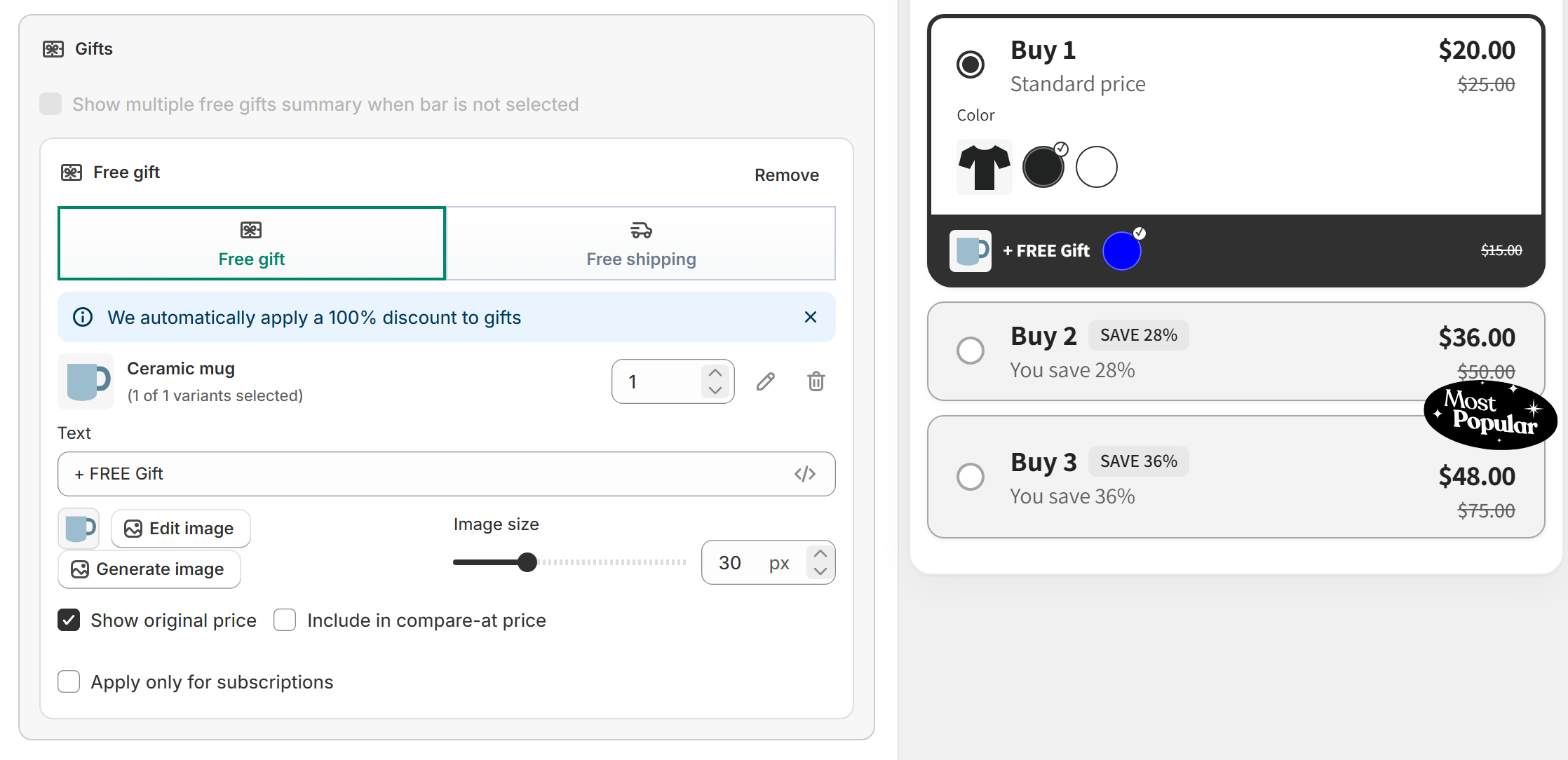
Click Add gift and choose one of the two options. BOGOX applies a 100% discount to gifts automatically.
Single gift: choose Free gift and click Select a product, or choose Free shipping. Then set the Text (it starts as “+ FREE Gift” or “+ FREE Shipping”), the image and its Image size. For product gifts, Generate image creates a gift picture from the product photo, and you can turn on Show original price and Include in compare-at price. For free shipping, Exclude shipping rates over a certain amount lets you set a Maximum shipping rate.
Choice of gifts: click Select products to list the gifts on offer and set Max quantity, how many the shopper can pick. Shoppers see Text before selection (“Choose 2 FREE gifts” by default), pick their gifts in a window, and then see Text after selection (“2 FREE gifts selected”).
With two or more single gifts, Show multiple free gifts summary when bar is not selected groups them in one line, titled “{{gifts_count}} Free Gifts Included” until you change the Summary title. Any gift can be limited to subscribers with Apply only for subscriptions.
Upsells, personalization and highlights
Add upsell: adds a line with a checkbox that lets shoppers add one more product at a discount. Under Product source, pick Chosen product and select it, or Complementary product to use the ones set in Shopify Search & Discovery. Set Pricing, the Text (“+ Add at {{saved_percentage}} discount” by default) and an image. Turn on Show only when this tier is selected to hide it on other tiers. You can add up to 20 upsells per tier.
Add personalization: adds a line where shoppers type a custom text, such as a name to engrave. Set the Title, Subtitle and Cart field name, the label shown next to the text in the cart and the order. Turn on Require personalization to make it mandatory. Paid personalization isn’t available, so keep Price per item at 0.
Add highlights: adds a short list of benefits with an icon, such as “Free returns”. Write each line, use Add highlight for more, and choose the Layout, Size, Text color, Icon type and Icon color. Show only on the selected tier hides them on the others.
Which one to use
Use an image or a featured image when the pack itself sells the deal. Use a gift or free shipping to make a bigger tier the obvious choice. Use an upsell for a natural add-on, personalization for products people customize, and highlights for two or three short reasons to buy. Texts in these lines accept the same values as tier texts, and the live preview shows exactly what shoppers will see. To take an upsell, gift or personalization away, click Remove on its card; for highlights, click Remove all.