
Install BOGOX and turn it on in your theme
Install BOGOX from the Shopify App Store and turn on the app embed in your theme so your offers can appear on your product pages.
Written by Miguel Zamora
On this page
BOGOX shows your offers on your product pages. To do that, the app must be installed and BOGOX must be turned on in your theme (in Shopify this is called an app embed). This takes about two minutes.
Step 1: Install BOGOX
Open the BOGOX page on the Shopify App Store and select Install.
Review the permissions and confirm the installation.
BOGOX opens in your Shopify admin and shows the Setup guide on the Home page.
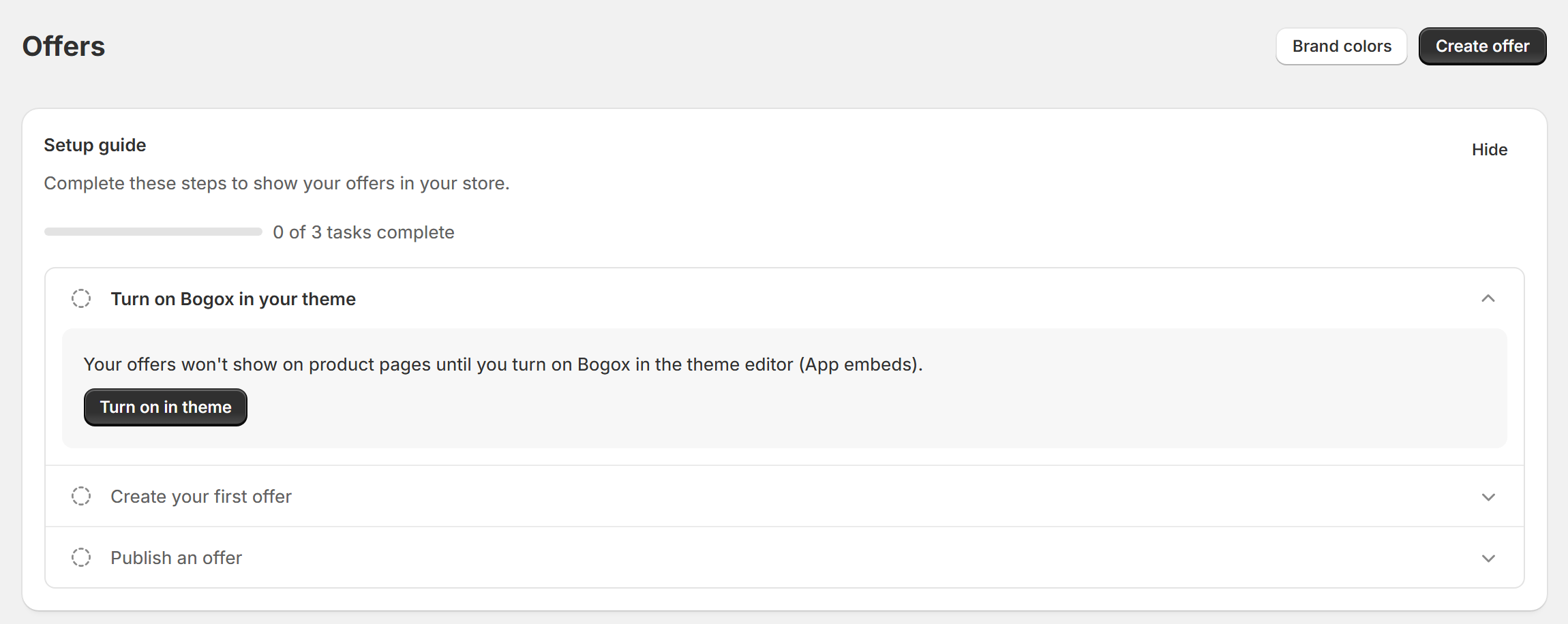
Step 2: Turn on BOGOX in your theme
Your offers won’t show on product pages until BOGOX is turned on in your theme.
In the Setup guide, open the step Turn on Bogox in your theme.
Select Turn on in theme. Your theme editor opens on App embeds.
Find Bogox Upsell, Cross-sell and turn its switch on.
Select Save in the top-right corner of the theme editor.
You can also get there manually: in your Shopify admin go to Online Store → Themes, select Customize on your published theme, then open App embeds in the left sidebar.
Step 3: Check that it’s on
Go back to BOGOX. In the Setup guide, the first step now shows Bogox is on in your theme and is marked as completed.
If it still shows as off, make sure you selected Save in the theme editor and that you turned it on in your published theme.