Add and edit badges
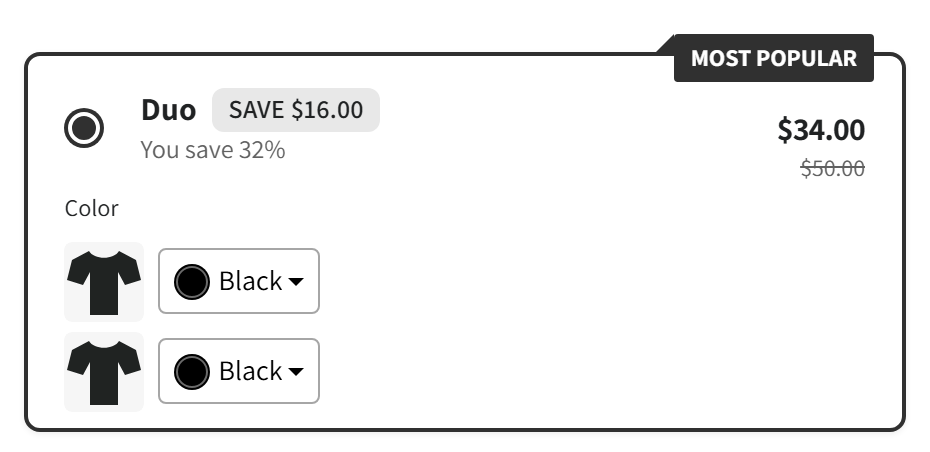
Add a badge such as MOST POPULAR to a tier from Extras, then change its text, size and colors, move it to another tier or remove it.
Written by Miguel Zamora
Turn on badges
A badge is a small colored tag that draws attention to one tier, such as the deal you want most shoppers to pick.
Open your offer and go to Extras. Badges is in the Urgency and trust group.
Turn on the switch in the Badges header. The section opens, and the first time BOGOX adds a badge with the text “MOST POPULAR” to the tier that’s Selected by default (or to the first tier).
Change the badge as you like, check the live preview and save the offer.
Badge settings
Each badge has its own card, titled Badge, with these settings:
Style: Simple, a tag with your text on a solid color. The other styles in the list are greyed out.
Attached to: the tier that shows the badge. Tiers are listed as Bar #1, Bar #2 and so on, followed by their title.
Text: what the badge says, up to 255 characters. It has the same insert button as tier texts, so you can write “SAVE {{saved_percentage}}” and show the real saving.
Text size: from 8 to 24 px, 12 px by default. Use the slider or type a number.
Text color and Background color: click the swatch to pick a color. New badges start with white text on a lime green background.
Add, move and remove badges
Add another badge: click + Add badge. It goes to the next tier without a badge, starting with the tier selected by default. Each tier holds one badge, so the button is greyed out once every tier has one.
Move a badge: choose another tier in Attached to. Tiers that already have a badge are greyed out in the list.
Remove a badge: click Remove on its card.
Hide all badges for a while: turn off the switch in the Badges header. Your badges are kept, and they come back when you turn the switch on again.
Badges stay with their tier, so if you reorder tiers, each badge moves along with its tier.
What shoppers see
Shoppers see the badge on the edge of its tier, with your text, size and colors. Values in the text show real amounts and update when the shopper picks another variant, just like tier texts.
Keep badge text to one to three words, like “BEST VALUE” or “MOST POPULAR”, and use one or two badges per offer at most. If every tier has a badge, none of them stands out.