
Write tier texts with dynamic values
Write the Title, Subtitle and Discount label of each tier with values like the amount saved or the new price, which update on their own.
Written by Miguel Zamora
On this page
Where tier texts live
Open your offer, go to Discount tiers and click a tier to open it. Under Tier text you’ll find three fields:
Title: the main line of the tier, for example “Buy 2”.
Subtitle: a smaller supporting line, for example “You save $10.00”.
Discount label: a short tag for the deal, for example “SAVE 15%”. It holds up to 80 characters.
In Mix and match tiers the same fields sit under Text and pricing, next to Button text.
Insert a dynamic value
Click inside the field, at the spot where you want the value.
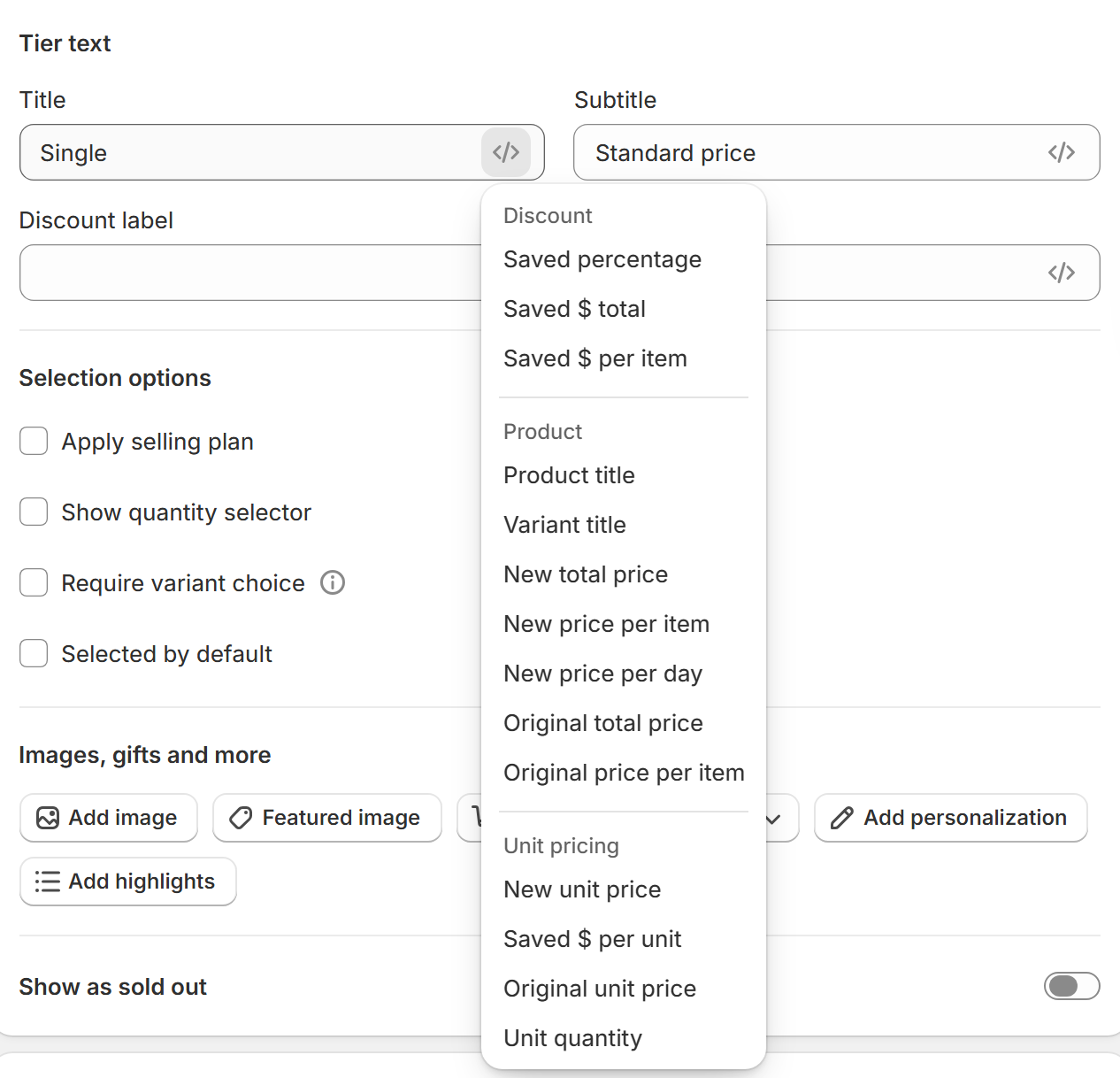
Click the small code icon at the right edge of the field to open the list of values.
Pick a value from the menu. It’s added where your cursor was, written between double braces, like {{saved_percentage}}.
Check the live preview and save the offer.
You can also type a value yourself, as long as you keep the double braces. If a value doesn’t fit within the field’s character limit, the panel shows a message and adds nothing.
All the values you can use
Discount: Saved percentage, Saved $ total and Saved $ per item.
Product: Product title, Variant title, New total price, New price per item, New price per day (the price per item divided by 30), Original total price and Original price per item.
Unit pricing: New unit price, Saved $ per unit, Original unit price and Unit quantity. They use the unit price set on the product in Shopify, such as a price per 100 ml.
Quantity: Quantity, Buy quantity, Get quantity and Number of free gifts.
Subscription: Selling plan name and Selling plan discount.
Text: Product metafield, Product metafield 2, Product metafield 3 and Product metafield 4. These show a short text you write for each product. Saving the offer creates the “Bogox Bundles — Highlight text 1–4” fields you use; fill them in at the bottom of each product page in Shopify. Without text, the value stays blank.
A value that doesn’t apply stays blank. Buy quantity and Get quantity fill in on Buy X, get Y tiers, Number of free gifts needs gifts on the tier, and the subscription values need a selling plan. In Product bundle and Mix and match tiers, Saved $ per item shows the whole saving, and Variant title isn’t offered.
What shoppers see
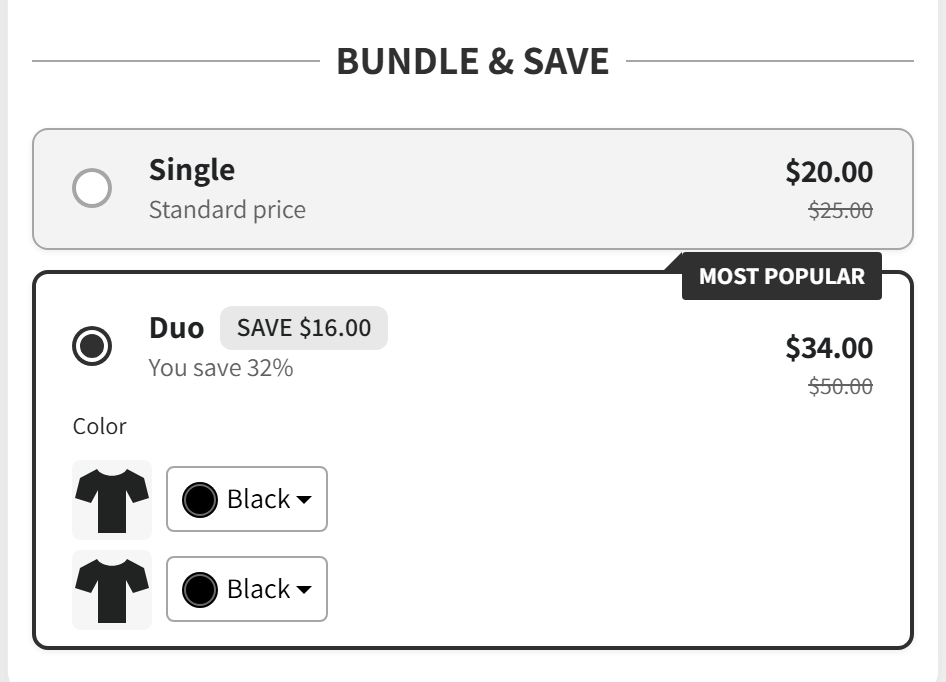
Shoppers never see the braces. They see real amounts, worked out from the product’s price, the tier’s quantity and its discount, in your store’s currency. Saved percentage is rounded to a whole number.
Values update by themselves. When a shopper picks a variant with a different price, every value in the tier changes with it, and the editor preview does the same while you change a quantity or a discount. If a price can’t be known yet, the text shows a note that the amount is calculated at checkout instead.
Examples and tips for clear copy
Title “Buy {{quantity}}”, Subtitle “You save {{saved_total}}” and Discount label “SAVE {{saved_percentage}}” can show “Buy 2”, “You save $10.00” and “SAVE 15%”.
“Only {{new_price}} each” shows the price per item after the discount.
“Buy {{buy_quantity}}, get {{get_quantity}} free” works well on Buy X, get Y tiers.
“Just {{new_price / 30}} a day” suits products that last a month.
Keep each line short: one idea per field, the saving first, and one or two values at most. Short texts read better on phones. Use the same pattern in every tier so shoppers can compare them at a glance. The same insert button also appears in other text fields, such as badge text, gift and upsell lines and highlights.